Language 简体中文 繁體中文 English
yicePDF yicePDF

A batch of photos.
One PDF you can hand in.

The portal takes a single PDF, 5 MB or less.
A batch of crooked certificates in your camera roll — straightened, ordered, squeezed under the limit. Your photos never leave the device.

  • Nothing uploaded
  • No account
  • No library scanning
  • No ads
  • One-time purchase · no subscription
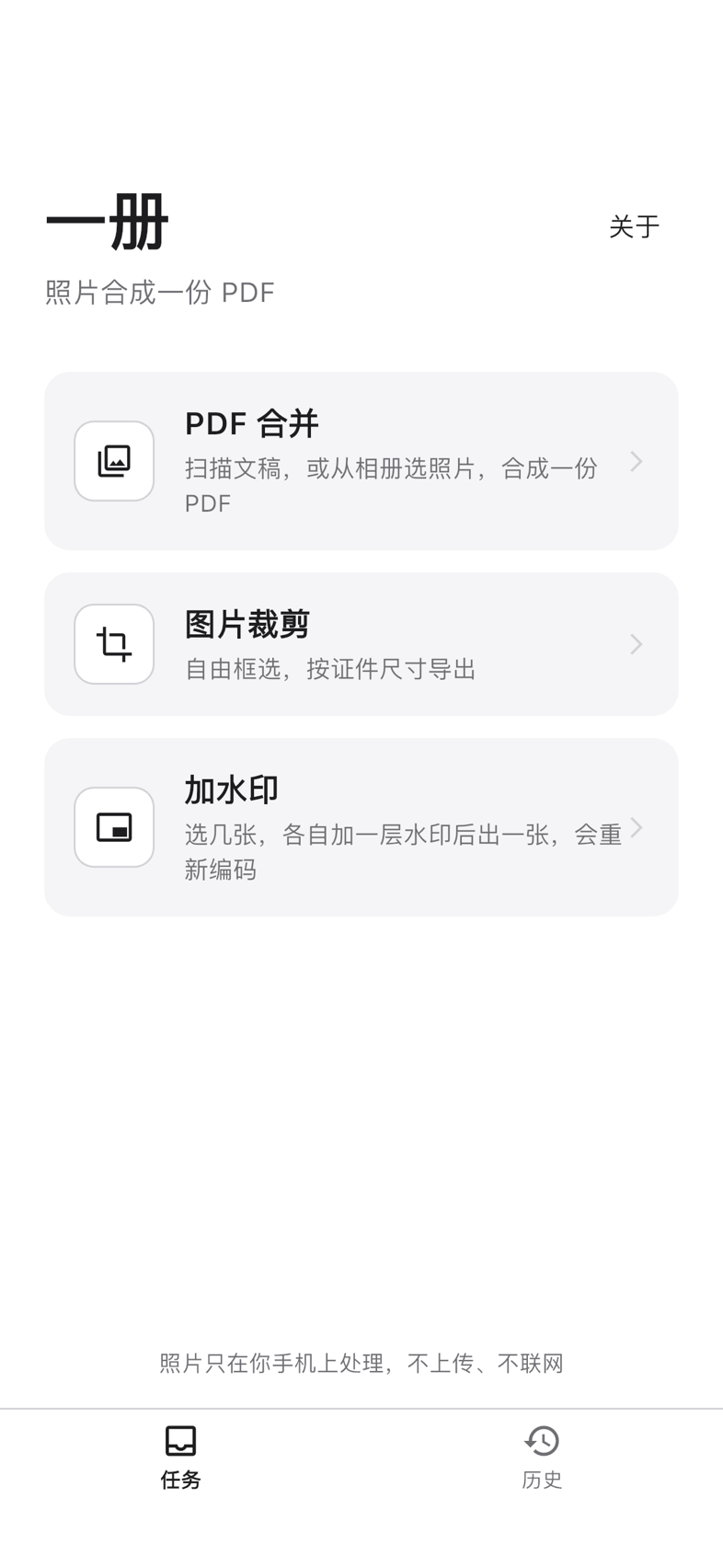
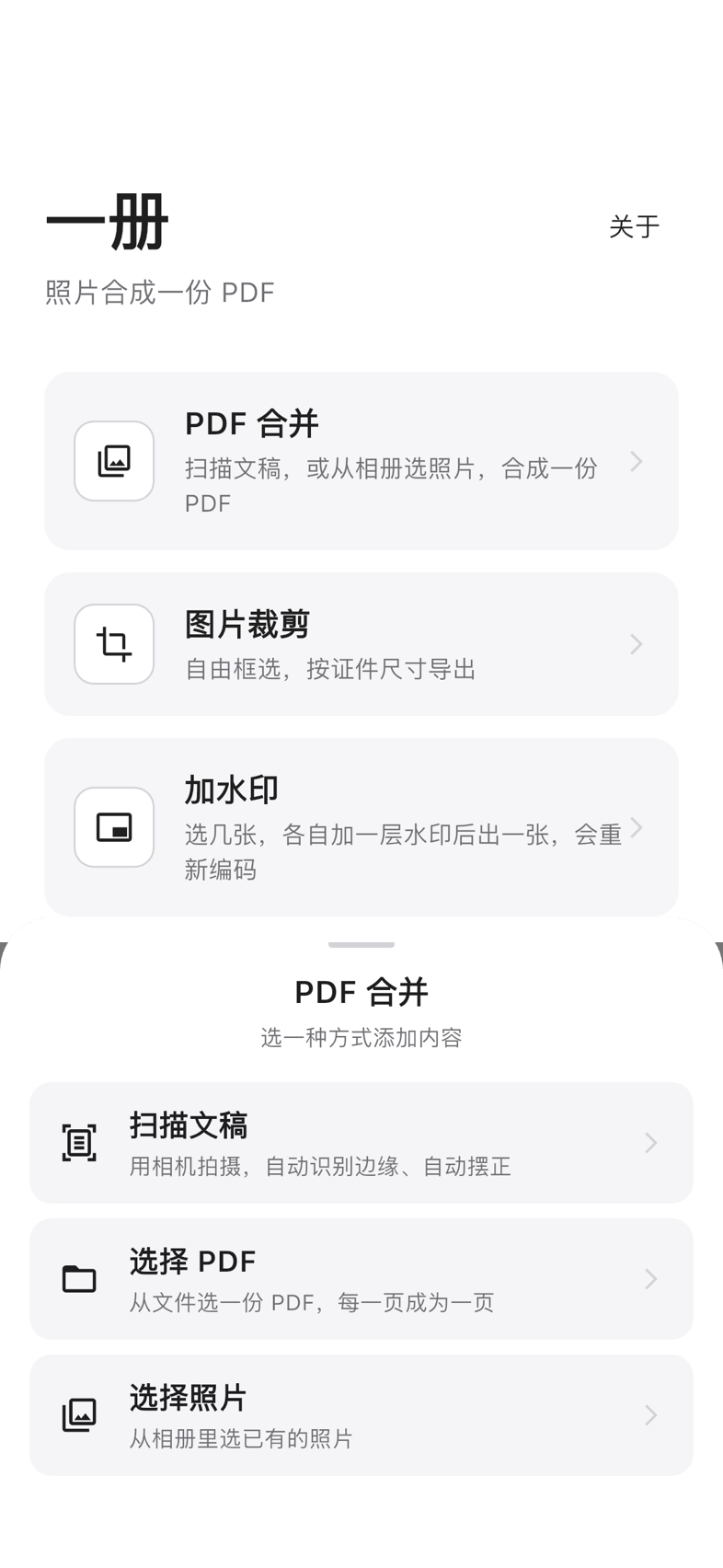
yicePDF home: three entry cards — merge to PDF, crop an image, add a watermark — with Tasks and History tabs at the bottom
Open · Three cards, three jobs. Tap one to enter that flow.

Core capabilities

Tidy it up
before you hand it over.

Crooked. Cluttered. Over the limit.

01

Auto-straighten

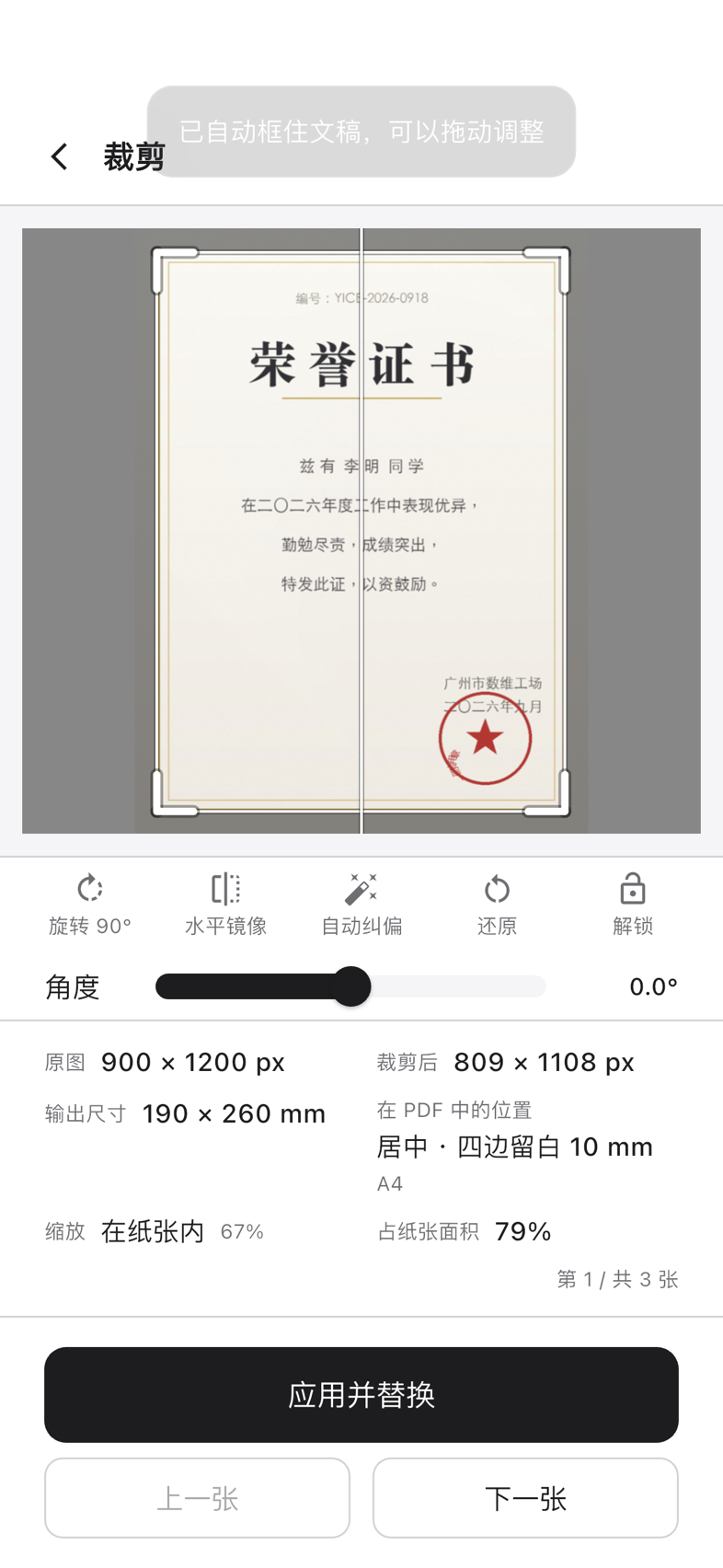
Finds the four corners of the sheet, crops away the desk, the shadow and the black border, then corrects perspective. It only acts past 0.5° of tilt — a straight photo is left alone. If it can't find the sheet, it falls back to the original and moves on.

45 out of 50 or morestraightened in one pass
02

Under the limit

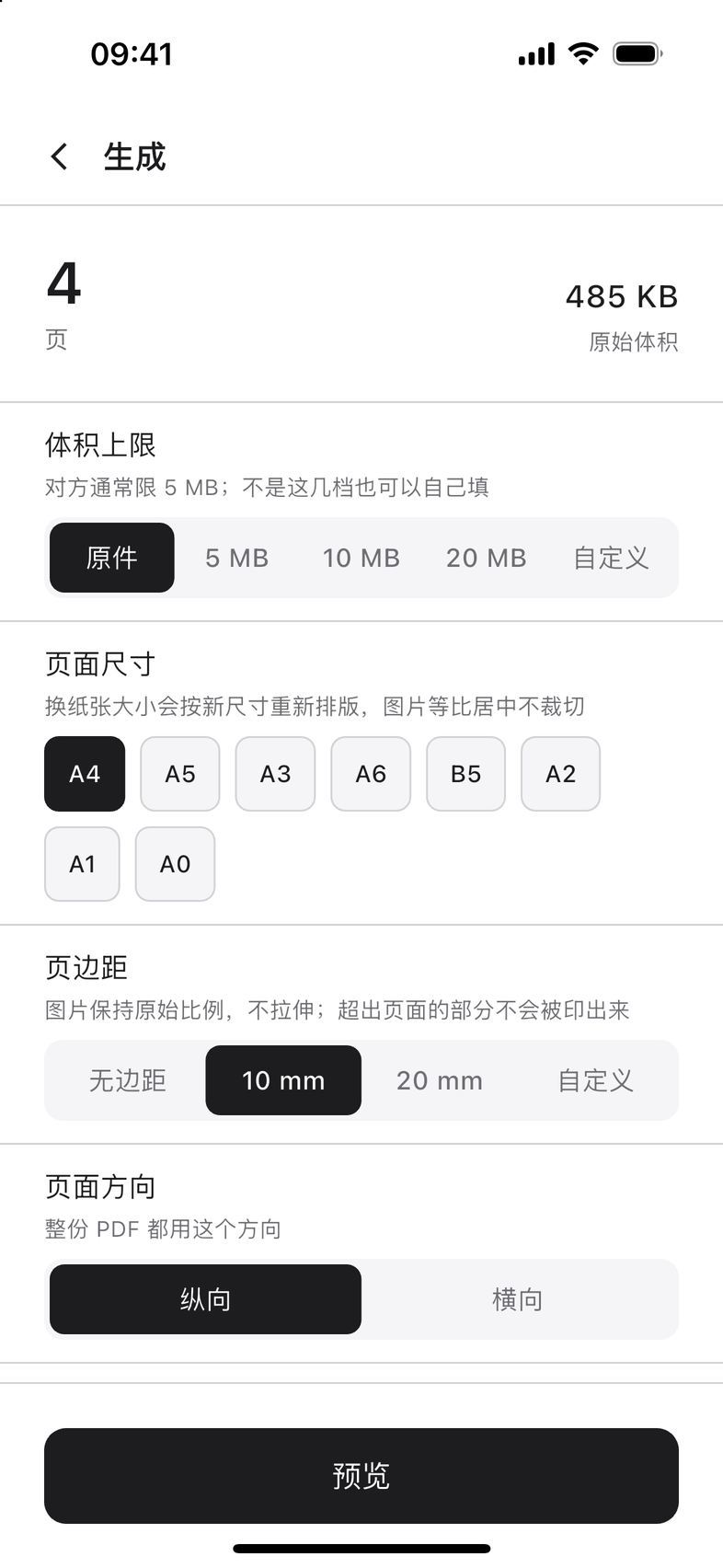
Four presets — original, 5, 10, 20 MB — or type your own. It approaches the cap through JPEG quality, never crossing it; source images are embedded whole, never re-encoded. Size doesn't grow, quality doesn't drop.

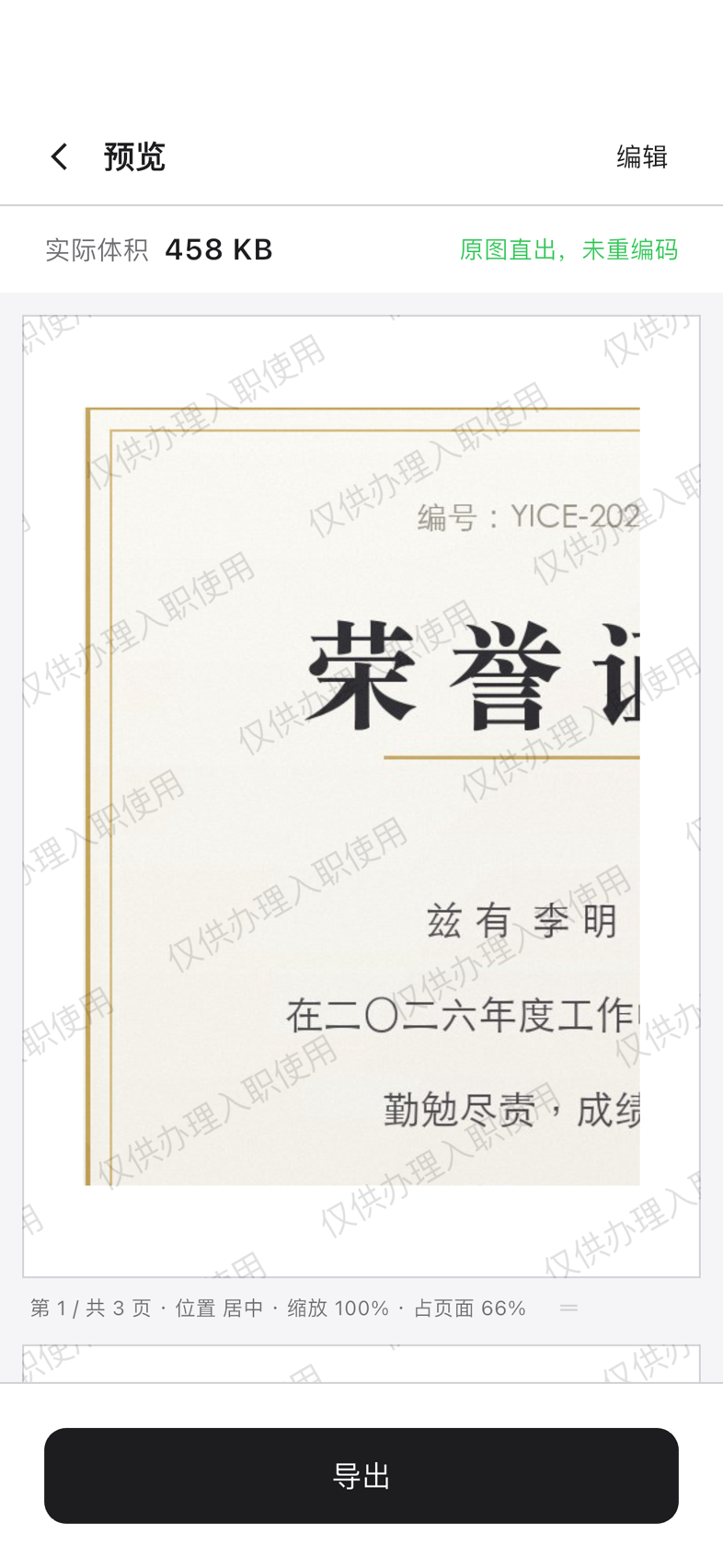
What you preview is what you export.

03

Mix them all in

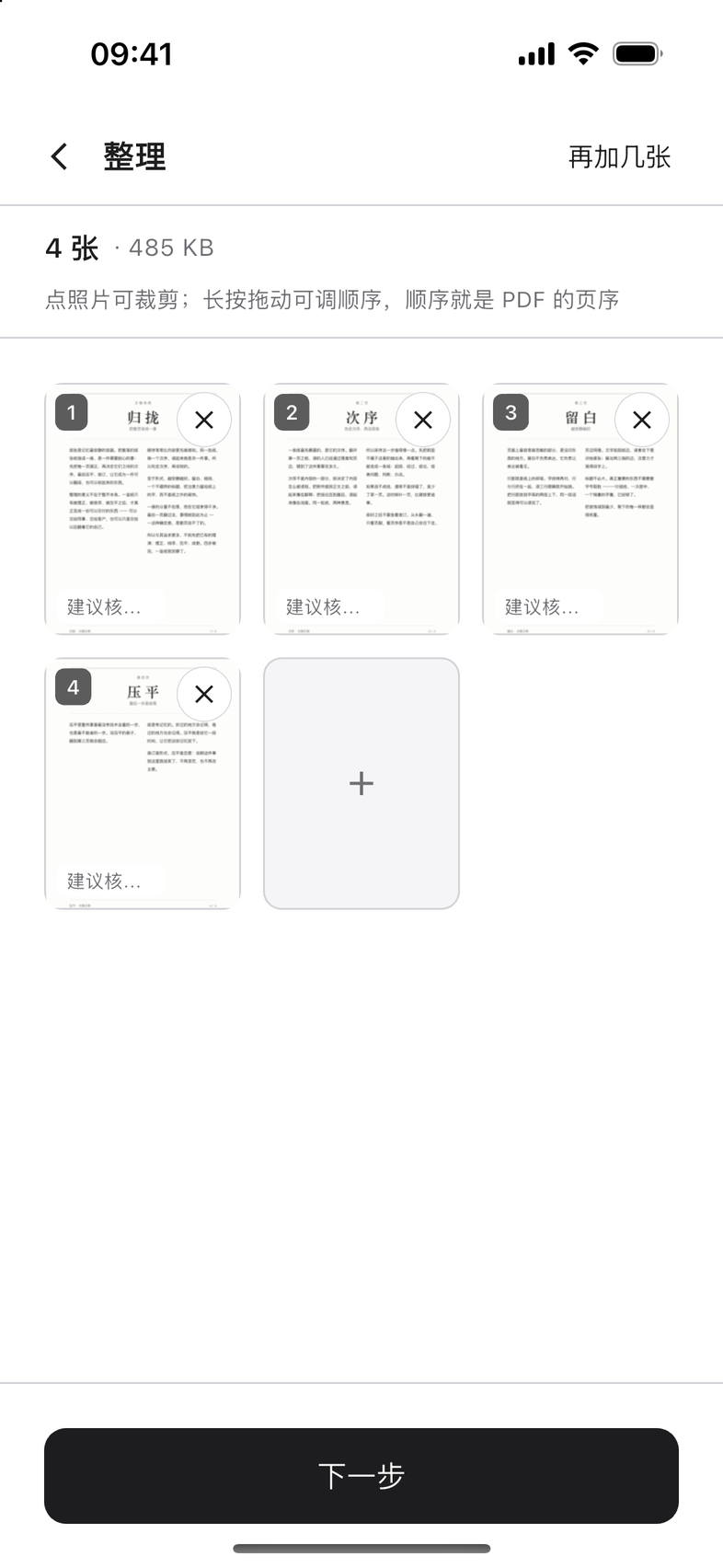
Camera roll, files and camera are three ways in. JPG / PNG / HEIC / HEIF / PDF can be mixed, up to 30 files at a time. A PDF comes in and spreads out page by page — one page stays one page.

30 at a timefive formats, mixed

Three ways in

There are really three things inside.

Merging to PDF is the main line. The other two stand on their own — tapping “Change photo” on the crop screen won't touch the document you're working on.

Sheet that appears after tapping Merge to PDF: scan a document, pick a PDF, or pick photos

Way in · 01

Merge to PDF

It first asks how you want to add: scan a document with the camera, pick a PDF from Files, or pick photos from the camera roll. A PDF spreads out page by page — one page stays one page. Mixing is fine, up to 30 files at a time.

3 ways inScan / Files / Photos

Workflow

Four steps, two of them automatic

Tap a step on the right to see what it looks like on screen.

Step one: three ways in on the bottom sheet — scan a document, pick a PDF, pick photos
① Pick your files · How to add is your call

The progress bar is real

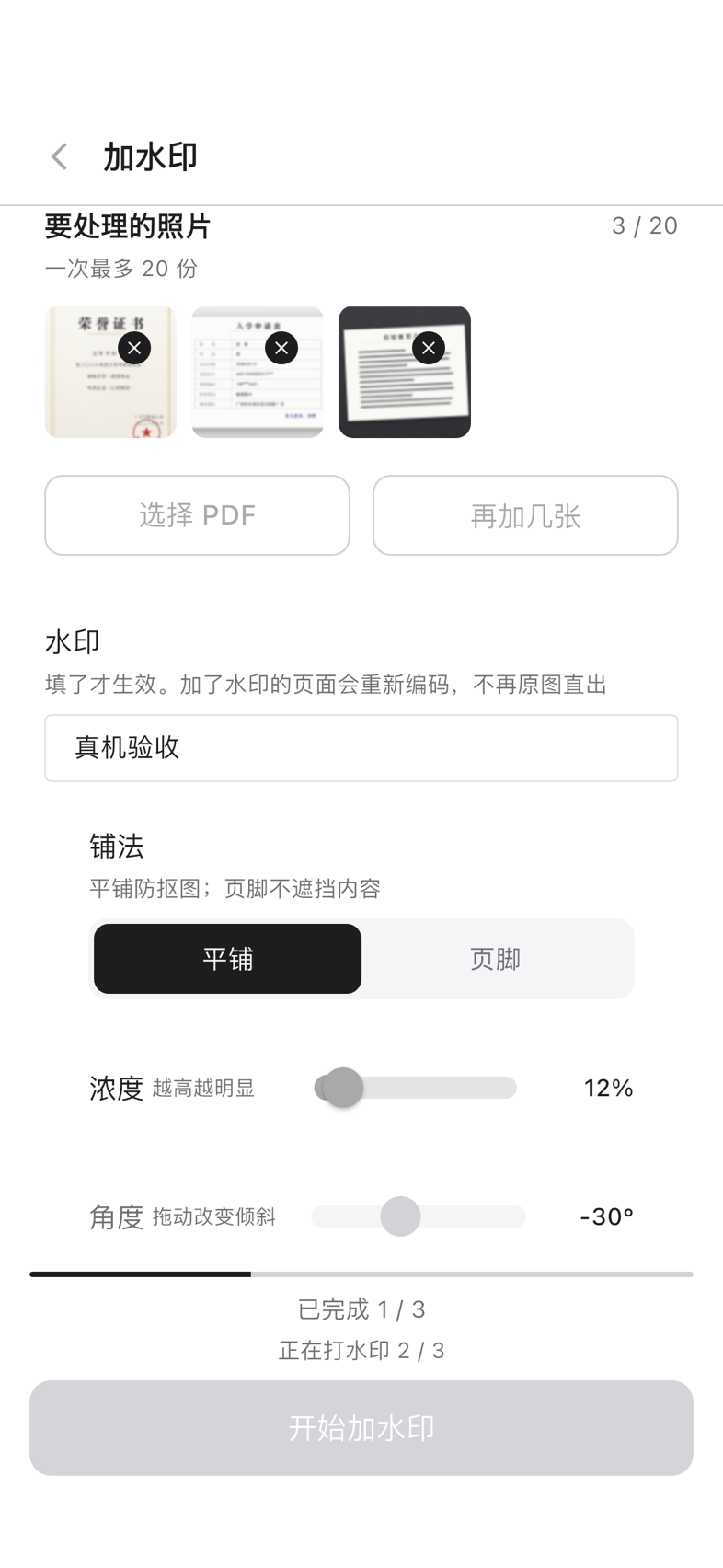
It's a determined value; the numerator is how many items are done. It doesn't go backwards and it doesn't pretend. Below it, each line says what's happening right now: “Completed 1 / 3”, “Watermarking 2 / 3”. A line only appears if that step is actually in this run — no watermark in the queue, no “Watermarking” line.

No indeterminate animations, no made-up phase weights, no estimating from time remaining.

ID photo sizes

The last mile
is the size.

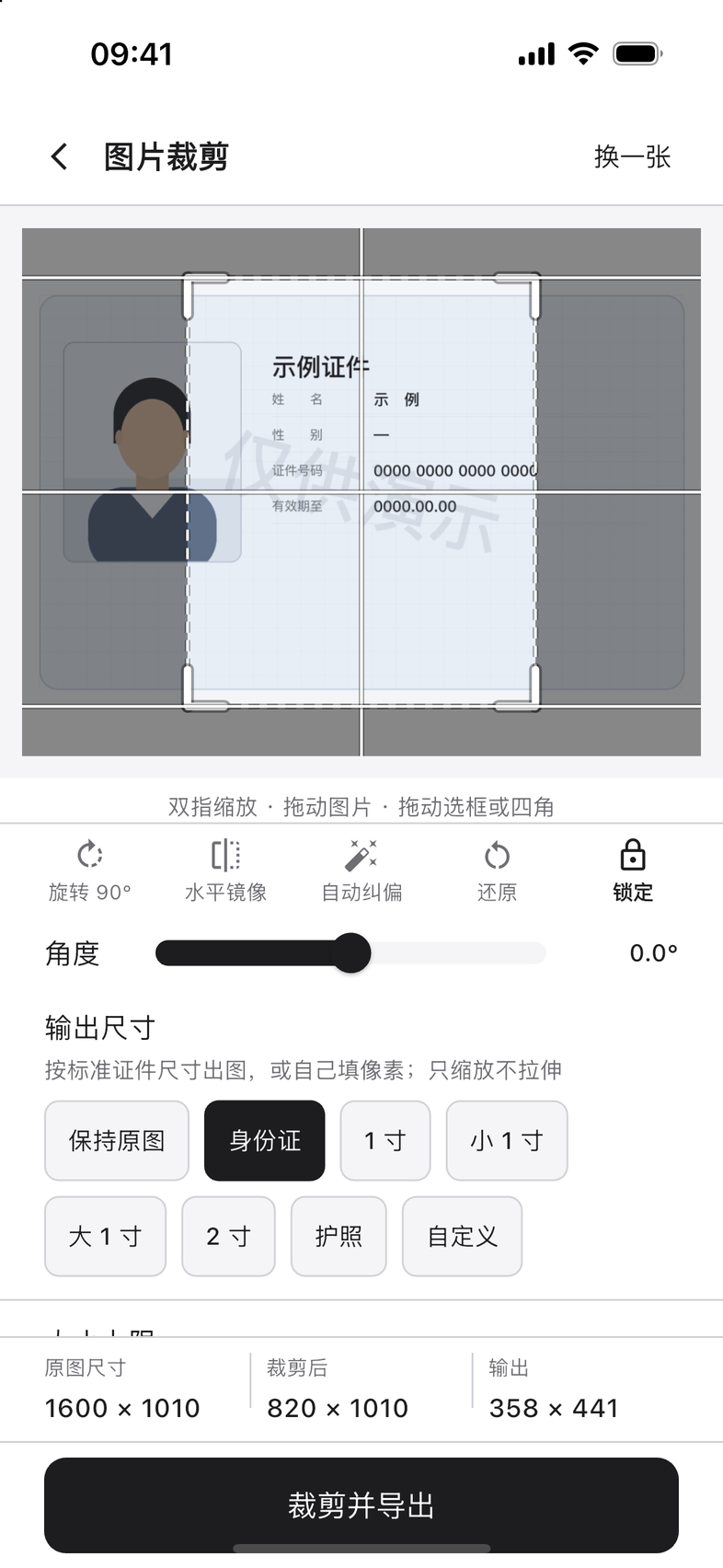
Tidy the files up perfectly and one line — “size doesn't meet the requirement” — sends you back to the start. When what you hand in is a single image, frame it first, then output it at a standard size.

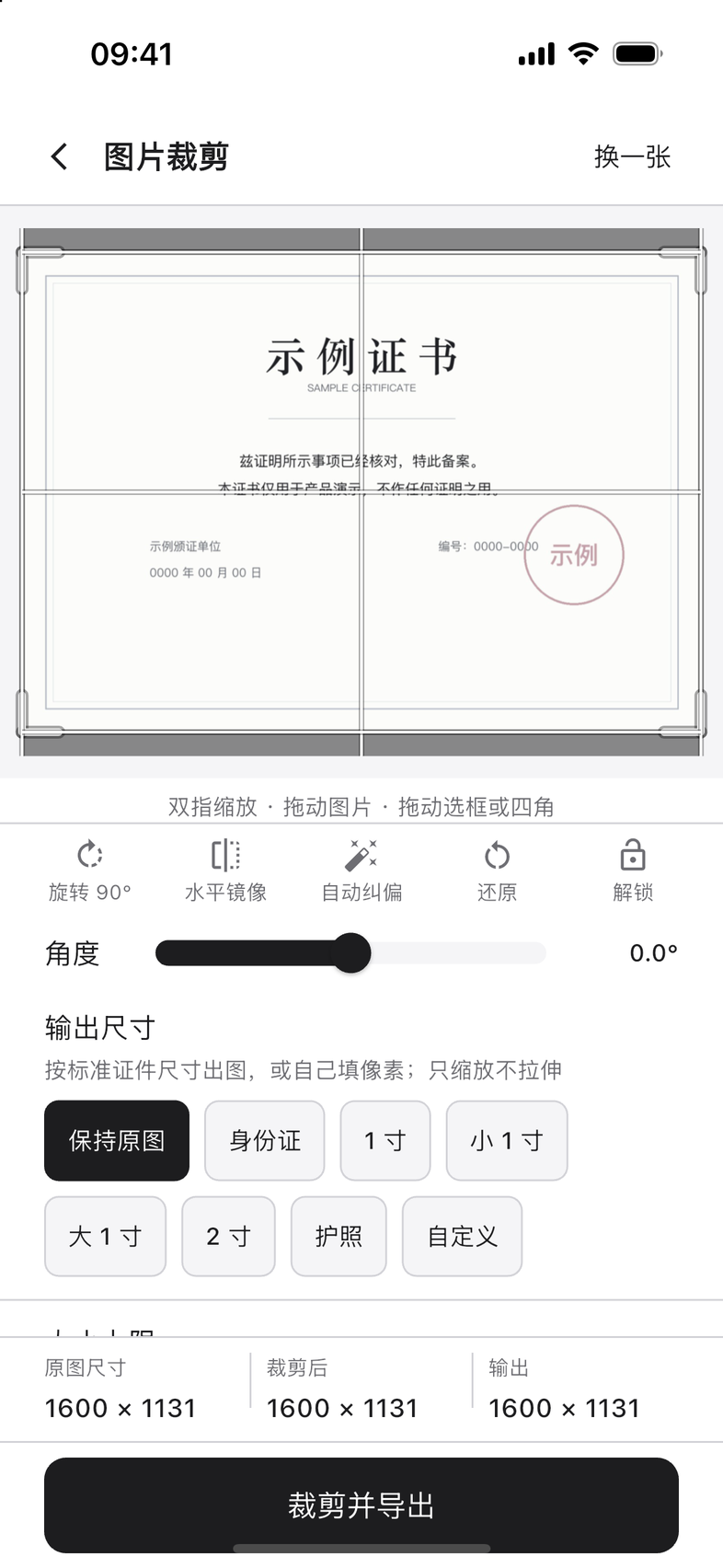
Framing Drag freely, handles on all four corners; snaps near the edges and centrelines
Helpers Rotate 90° · Mirror · Auto-straighten · Fine angle · Lock the frame
Output size Keep original / ID card / 1-inch / small 1-inch / large 1-inch / 2-inch / passport — or type your own pixels
Three numbers Original · cropped · output, side by side, updating as you drag
One question after “Where should this image go?” — save it to the camera roll, or share it
Tap the scrim to cancel It does nothing. It won't guess what you meant

Scales only, never stretches. An ID photo with a twisted aspect ratio gets handed back by a human — so the output scales proportionally to the target size and fills the shortfall with white, instead of widening the face.

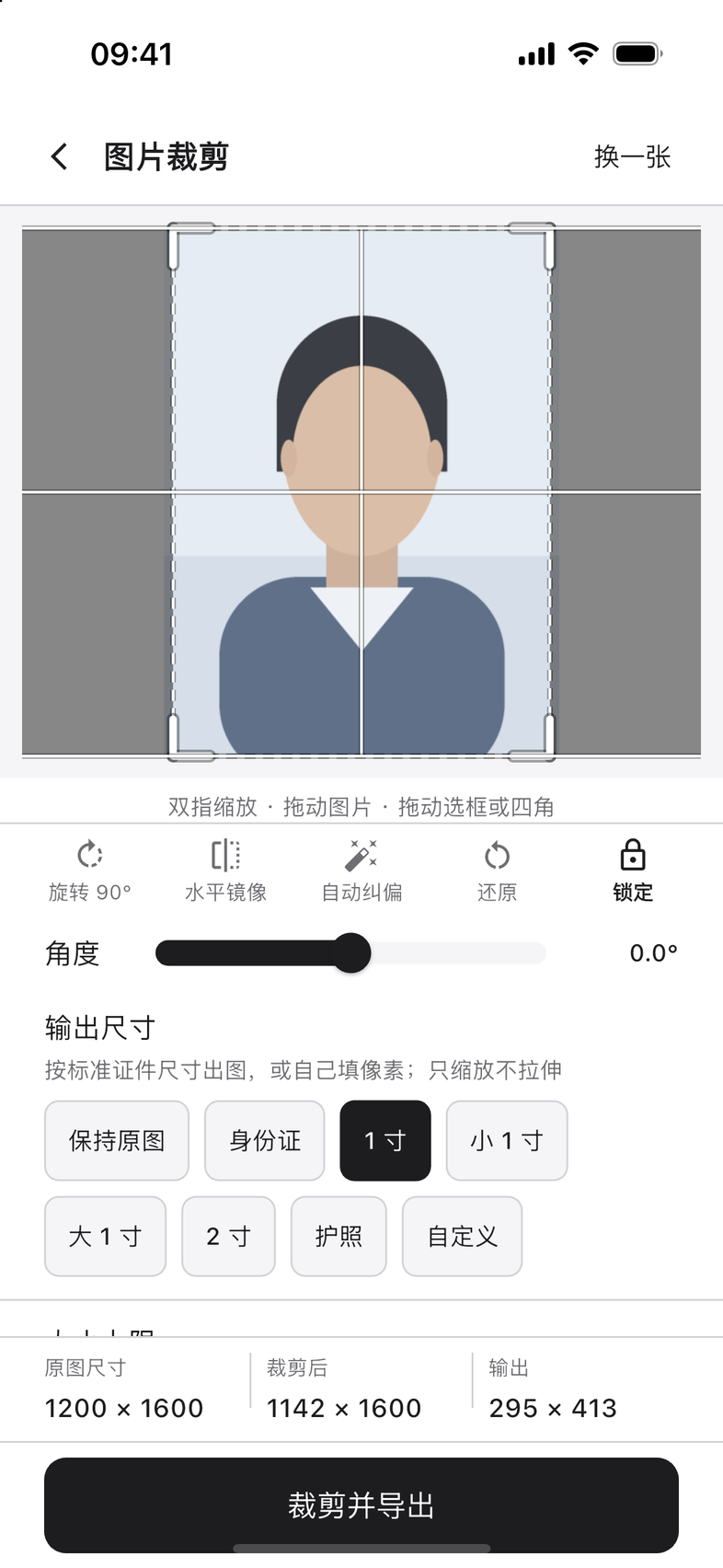
Pick “1-inch” and yicePDF writes in 300 dpi. 295 × 413 px is how many centimetres depends entirely on the density. Leave it out and the other side divides by 96, reading a 1-inch photo as 7.8 × 10.9 cm (what's wanted is 2.5 × 3.5 cm).

Saving to the camera roll needs the “Add Photos Only” permission. yicePDF reads no other photo in your library.

After picking 1-inch: cropped 68 × 96, output 295 × 413, the frame locked to ID-photo proportions
After “1-inch” · The frame locks to ID-photo proportions
The “Where should this image go?” sheet before export: save to the camera roll, or share it
It asks where to put it first, instead of guessing

Watermark

A batch of photos,
one watermark layer each.

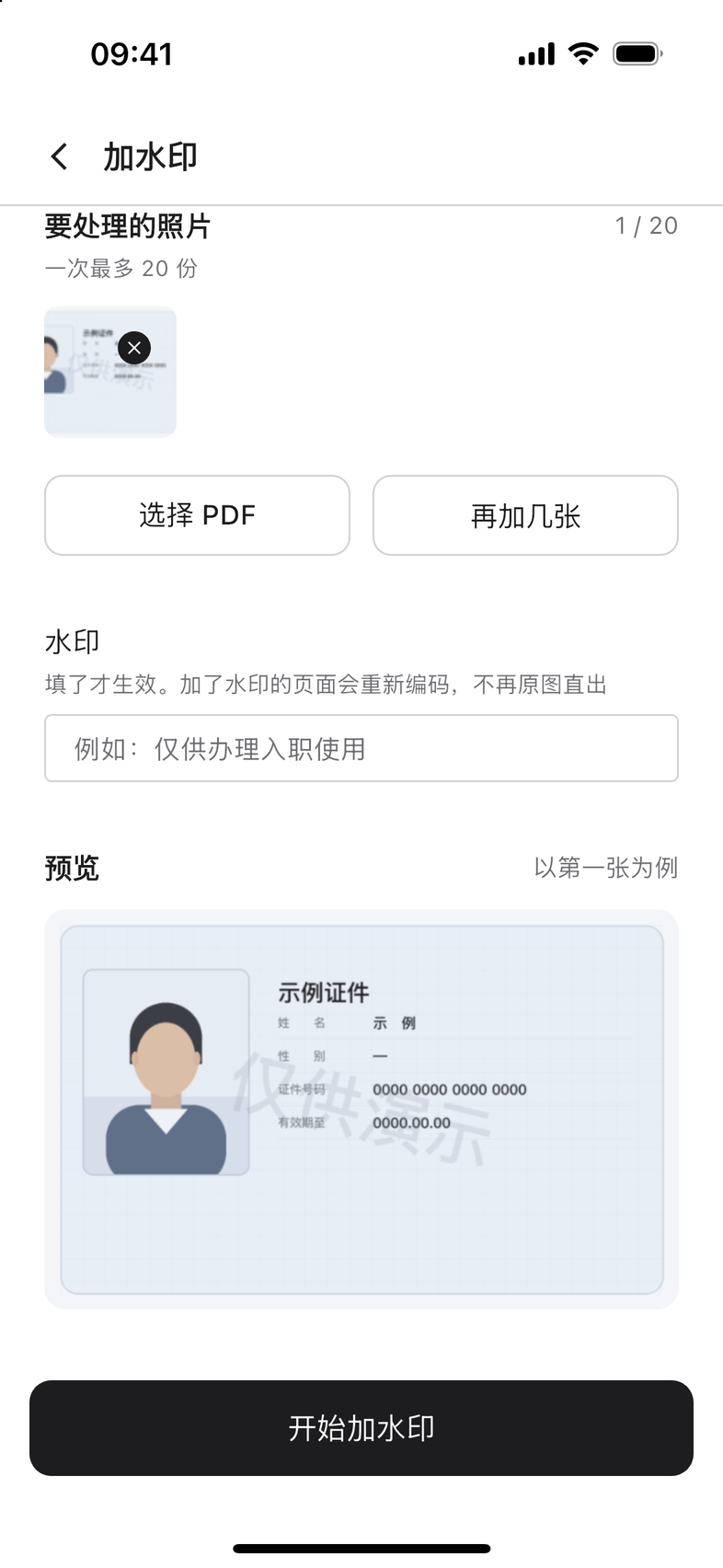
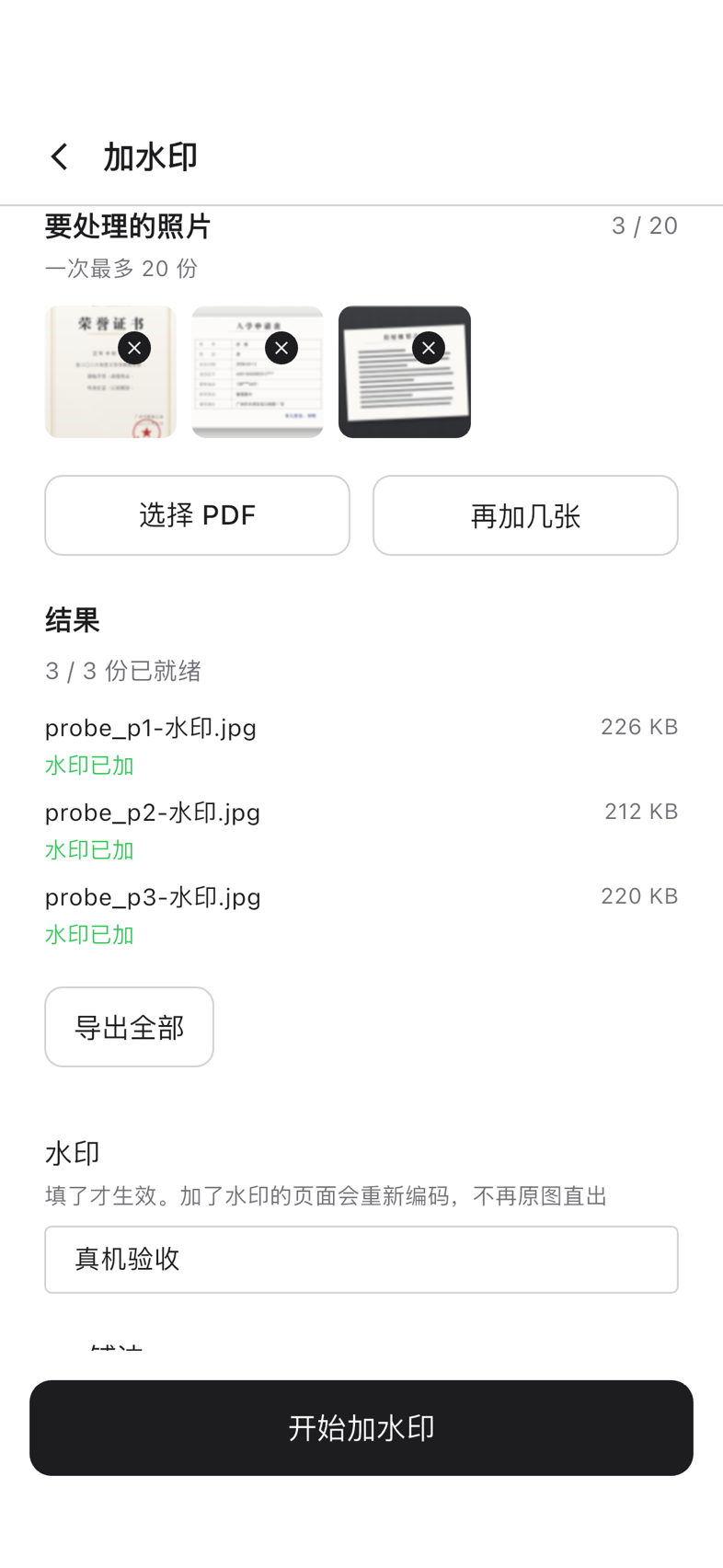
Pick a few, watermark them all, get one output each. Anything the watermark misses comes back as the original — nothing goes missing.

Queue: 3 / 20, each removable from its top-right corner, with a live preview using the first item
Queue · 3 / 20, up to 20 at a time
How many Up to 20 at a time; images in, images out; PDFs in, PDFs out
Four dials Layout · opacity · angle · density (tiled defaults to 12% at −30°; footer 55%)
Trade-off, stated Watermarked pages are re-encoded; if a PDF is in the queue it says so up front: every page becomes an image first, so its text is no longer selectable or searchable
Failures stay local One failure doesn't affect the rest; each item reports its own status
Admits when it can't “Compressed to 180 KB, still over the 20 KB limit” — it never claims to have hit it

Export history

Three kinds of output, kept apart.

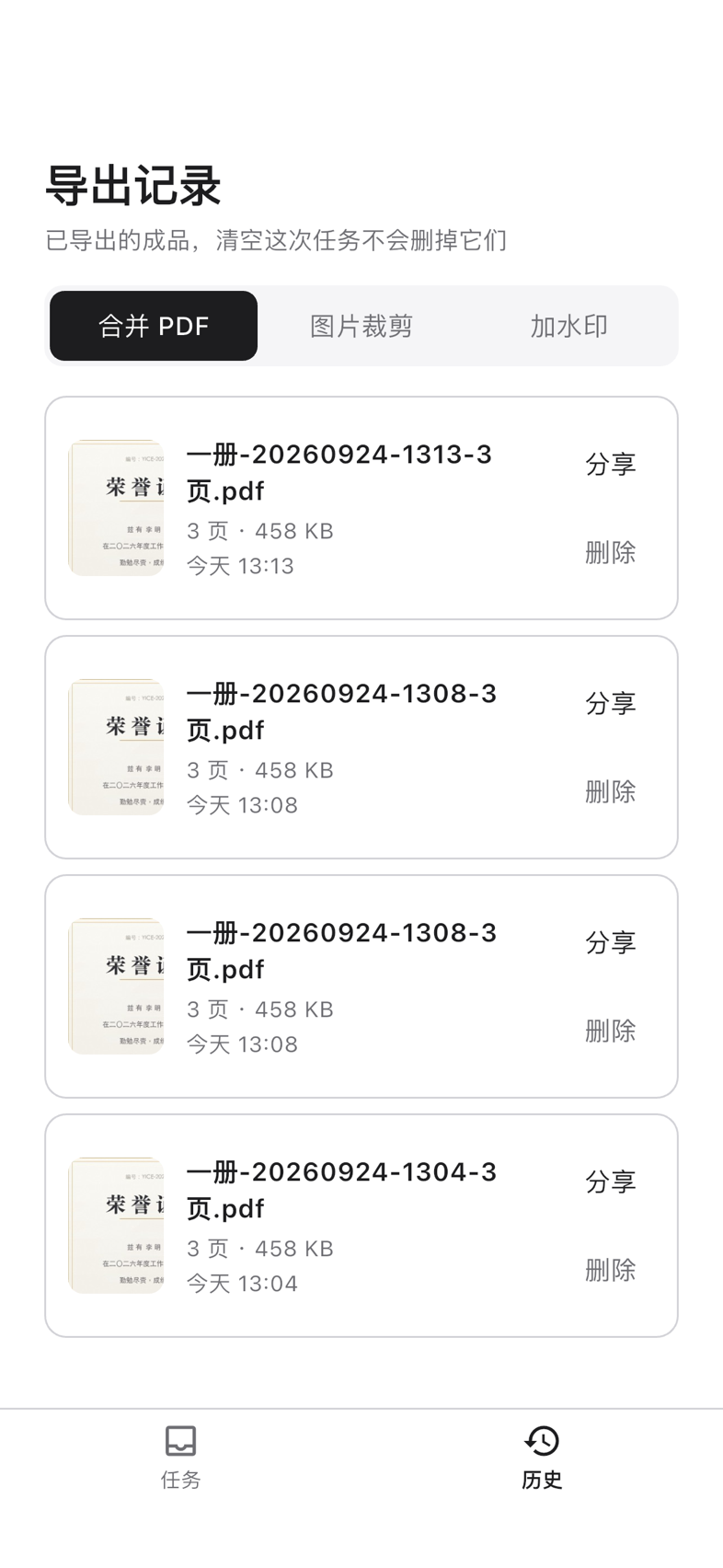
Merge to PDF, crop an image and watermark each keep their last 10 entries. Tap a row to open the output itself.

Export history screen: three category tabs — merge to PDF, crop an image, watermark — and rows of records
Export history · Three category tabs
Categories Merge to PDF / crop an image / watermark — 10 each, deleted separately
Open the output The whole row is tappable. PDFs read continuously, with page numbers on each page
Type comes from content It reads the file header, not the feature it came from — an image never gets sent down the PDF path
Delete Confirmed twice; it only deletes the copy kept here. Files you already shared are untouched
Clear tasks Leaves export history alone — two separate stores, no crosstalk

Coming soon

Desktop is on the way

The phone handles the documents in your camera roll. The desktop handles the ones on your computer.

Desktop · 01

The whole batch

Dragging to reorder and replacing in bulk are roomier than on a phone — good for working through a whole set from first page to last.

Windowsfirst

Desktop · 02

No store required

The desktop build isn't distributed through an app store — an independent channel that doesn't wait on store review.

Install and gono account, no store

Desktop · 03

Nothing uploaded

It shares the same on-device engine, so your files don't leave your computer either.

Nothing uploadedsame standard as mobile

The desktop version is not released yet.

Privacy

Your photos never leave the device

ID cards, contracts, receipts — not looked at, not sent, not kept.

ItemUploadedNot uploaded
Files — Originals, PDFs, any intermediate
Metadata — File names, paths, EXIF, image hashes
Device An irreversible device machine code Location, contacts, clipboard
Activation Unlock credential string, timestamp, version —

When it goes online: a network request is made only when you tap “Activate” yourself (Android). Launch, import, cropping, merging, preview and export make no network request at all.

Permissions: just two — Camera (for “Scan a document”) and Add Photos Only (for saving a cropped result to the camera roll). yicePDF can't read the rest of your library, and doesn't.

The iOS version is a paid store download, with no purchase channel inside the app — which is what makes a fully network-free app possible.

FAQ

Things you might be wondering

How is this different from the “Scan” feature already on my phone?

A system scanner is good at one sheet of paper. yicePDF is about a batch of them: photos in mixed orientations, needing a consistent page size, a controlled total size and a definite page order — and all of it exported in one go.

Size is the bigger issue. A scanned PDF often comes out to ten-odd megabytes, while most submission portals allow only 5 MB. Getting the size under that line, with the preview matching the export exactly, is the whole job.

There are also two things a system scanner won't do: crop a single image to an ID-photo size, and add one watermark layer to a whole batch of photos.

Really nothing is uploaded?

All file processing happens on your device. The only moment it touches the network at runtime is “Activate” (Android). You can verify that yourself with a packet capture — launch, import, crop, merge, preview and export make zero network requests.

The iOS version is more absolute still: a paid store download with no purchase channel inside the app, so it can run with no network requests at all.

Are there ads? Will it keep pushing me to buy more?

No ads. Not one. No advertising of any kind, and no third-party analytics SDKs.

A one-time purchase, with no subscription. No monthly or yearly fee, no auto-renewal, no pop-up urging an upgrade while you're exporting.

The Android free version runs the entire flow, limited to 3 pages — get a finished result first, then decide.

Why not a subscription?

Because how often you use it doesn't support one. Handing in documents, applying for permits, filing claims — these happen a few times a year. Paying a full year's subscription for a few uses doesn't make sense.

yicePDF is a one-time purchase with no subscription. That's written into the product definition and won't change.

Will watermarking degrade my photos?

The two watermarks are not the same thing, and it's worth being clear about that.

The watermark added while merging to PDF is a full-page layer: it sits on top of the page, while the photo itself is still embedded whole and not re-encoded. The screen says so right there: “Within the 5.00 MB limit, will not be re-encoded (zero quality loss)”.

The standalone watermark feature does re-encode, because it has to paint the watermark into the pixels — and the screen says that too. If the queue contains a PDF, each page becomes an image before watermarking, at the cost of its text no longer being selectable or searchable. The app tells you this on the page, not buried in settings.

How long can I use the free version? What are the limits?

The Android free version has no time limit and the complete flow is available — cropping, straightening, compression, ID-photo sizing and watermarking, none missing. The only limit is a maximum of 3 pages per export.

The iOS version is a one-time paid download: every feature is available as soon as you install it.

Can it read the text on an ID, or auto-fill ID templates?

No — deliberately so.

Text recognition would either go to a cloud service, which would betray “nothing uploaded”, or ship a local model, which isn't worth it in size or accuracy. A template library is a bottomless pit: templates change constantly, maintenance can't keep up, and it's all too easy to point at forgery.

yicePDF does three things: turn photos into one PDF you can hand in, crop one image to an ID-photo size, and add one watermark layer to a batch of photos.

Which formats are supported?

Import supports JPG, PNG, HEIC, HEIF and PDF, and they can be mixed: up to 30 files per merge run, up to 20 per watermark run. A single file over 50 MB is rejected; a PDF over 50 pages is rejected as a whole, with the page count stated — never truncated.

Export is PDF, with page size A4 / A5 / A3 / A6 / B5 / A2 / A1 / A0, portrait or landscape, scaled proportionally and centred, never cropped or stretched out of shape, with a default 10 mm margin on all four sides.

Does a crop get saved to my camera roll?

When a crop is done it asks “Where should this image go?” — save it to the camera roll, or share it. Tap the scrim to cancel and it does nothing at all.

Saving to the camera roll needs the Add Photos Only permission. yicePDF reads none of your other photos, and exporting a PDF never writes to the camera roll.

Is there a desktop version?

iOS and Android come first. Your documents are already in the camera roll: shoot, merge and submit, without going through a computer.

Desktop follows, for the other case — documents that live on a computer. See the whole batch at once, with more room to drag than a phone. Same on-device engine, nothing uploaded either, no store involved, ready as soon as it's installed.

Next time you hand
something in, don't redo it.

yicePDF · photos into one PDF. One-time purchase, no subscription, no ads.

Launching soon

Launching first on the China App Store and Android channels in mainland China.